
Digital Habits: Mail Beta
An email app for those of us who find email overwhelming
Works with your Gmail, Outlook, and Microsoft Exchange accounts.
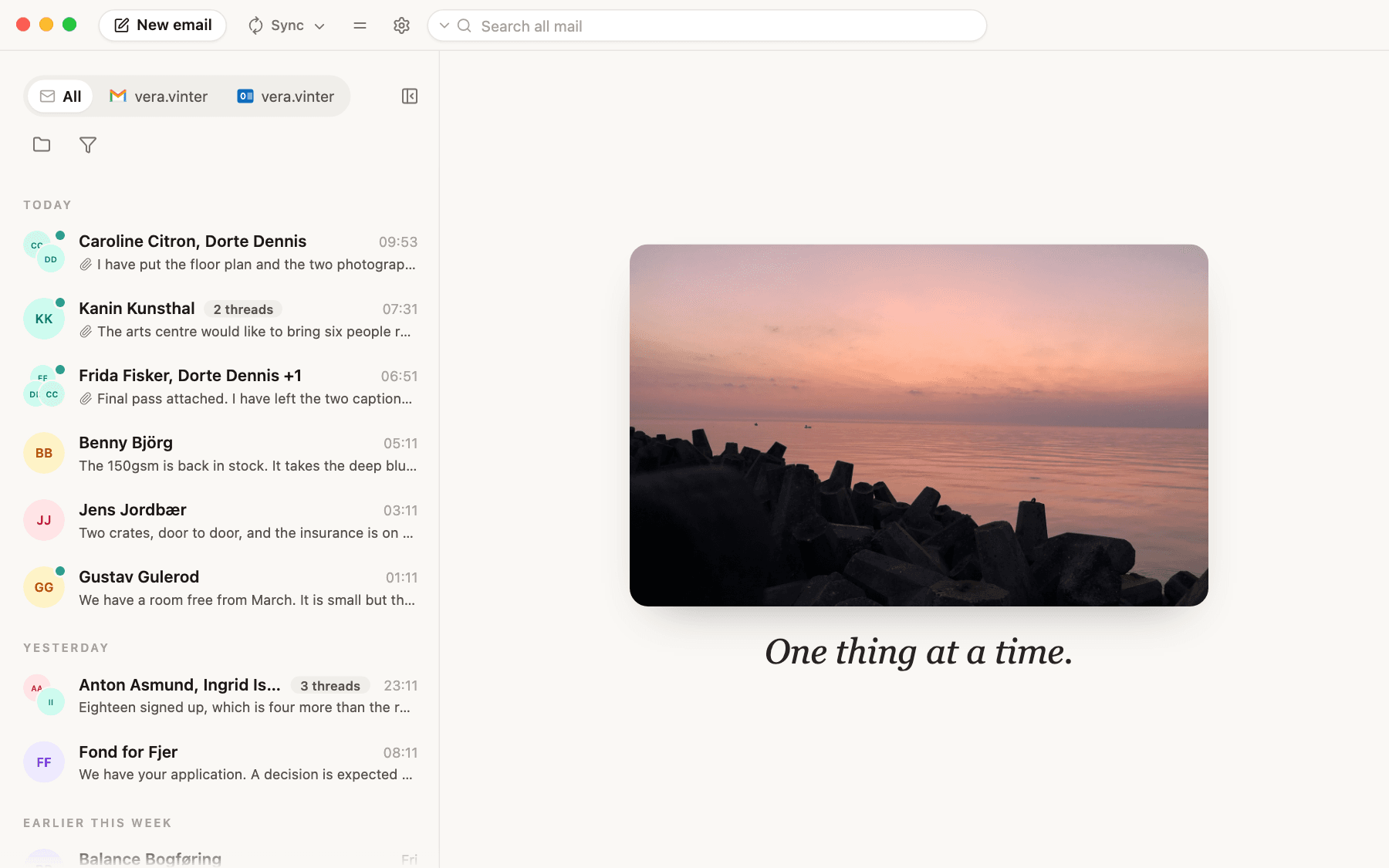
Make your inbox calm again
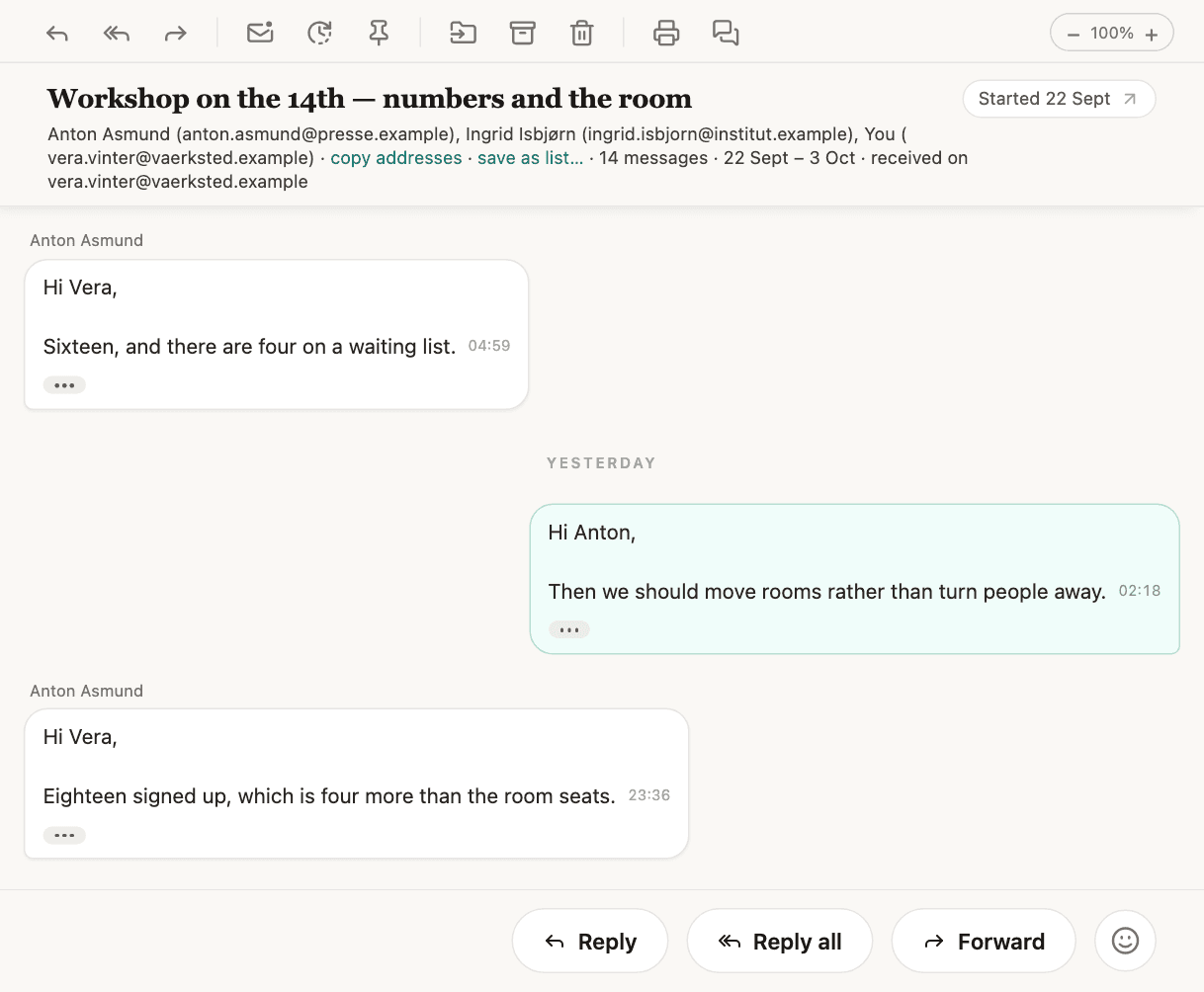
Threads read like a messaging app
A conversation is laid out the way a messaging app lays one out, instead of as nested quoted replies. Each message is a bubble.
Emails from the same sender are grouped
By default, new emails from the same sender are grouped together. No more having your inbox flooded by eight emails from your airline: they are one row.
Check mails on your own terms
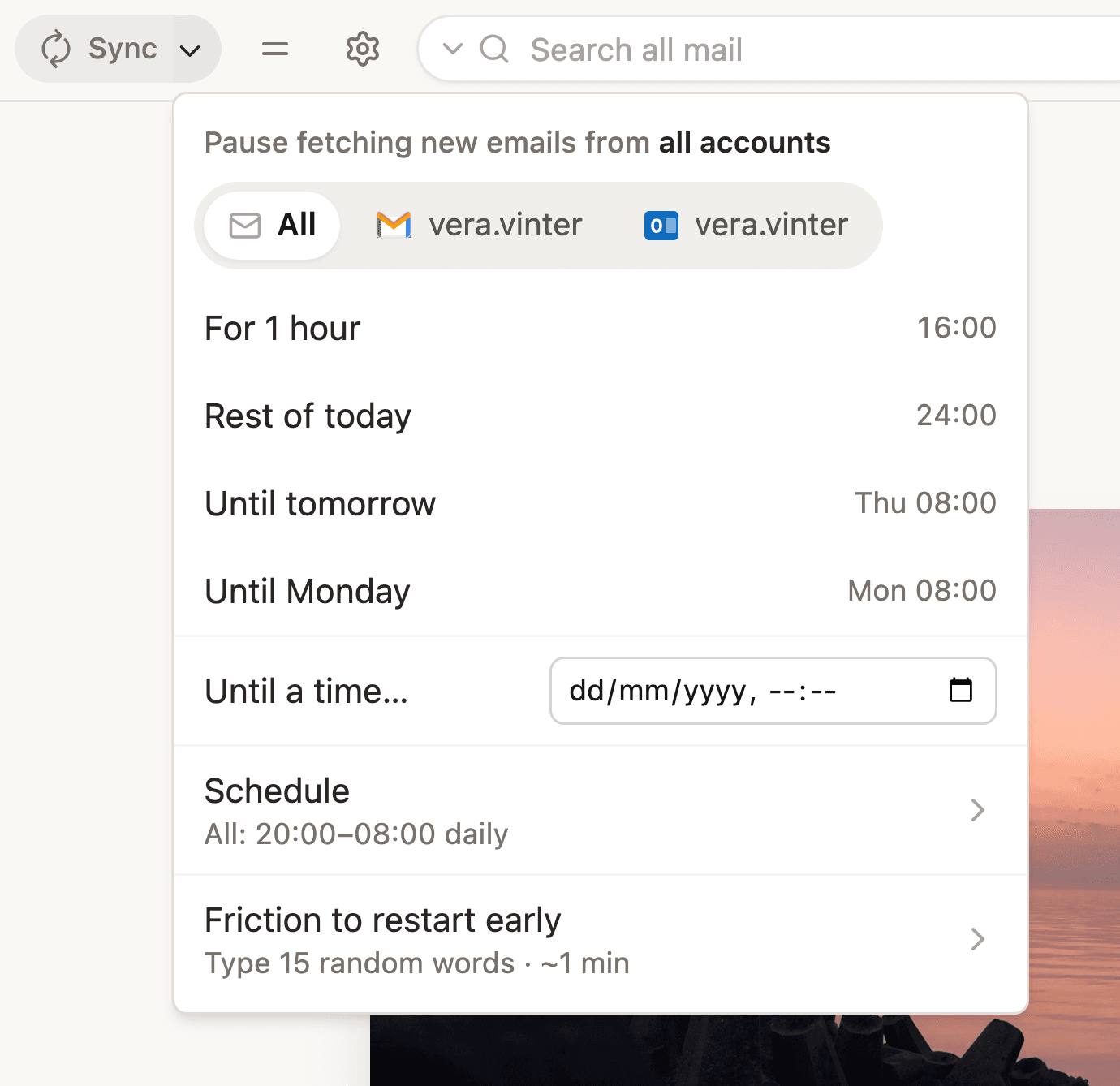
Pause new email for an hour, until tomorrow, or on a schedule, so that, for example, you never get work email after 8 p.m. Or hide a whole mailbox on a schedule: your work mailbox can be gone in the evening.
Set your out-of-office reply from Mail
For one account, or for all of them at once.
Filters
Show only the messages from specific senders, and have a filter turn on by itself at set hours.
Pop a conversation out
Pop a thread out into a small chat window that stays on top of whatever else you are doing.
Public source code and privacy-first
Your messages stay in a local database, and never go through a server of ours. Mail collects no personal data, only an anonymous daily usage count that you can turn off. The code is published so it can be read and checked.
Manual & FAQ
Answers to the questions people ask. If yours is not here, write to us.
Getting started
How do I connect a mail account?
Open Settings (the gear in the top bar) and go to Accounts. Press Connect Gmail or Connect Outlook, and finish signing in with Google or Microsoft in your browser. Do it again for each mailbox. Each one gets a tab above the list, and All shows them together. On a Mac, macOS may ask for your login password the first time: the app keeps mailbox access in the Keychain, not in its own files.
Which mail providers work?
Gmail and Google Workspace, and Outlook, Hotmail and Microsoft 365, personal and work accounts alike. Microsoft Exchange on your organization's own server works too. Other providers (plain IMAP) are not supported yet.
Google says it has not verified the app. What do I do?
Mail is in beta, and Google is still checking it. Until Google finishes, it shows a warning when you connect Gmail. Choose Advanced, then the Go to … link, and continue. Your mail still goes only between Google and this computer.
Microsoft says “Approval required”. What do I do?
Some organizations, such as many universities, let only their IT department approve a new mail app. Write a short reason, for example that you want to use Mail for your work email, and press Request approval. When your IT department approves it, it is approved for everyone in your organization. If there is no Request approval button, ask your IT department to approve Digital Habits: Mail from Centre for Digital Habits CIC. Personal Outlook and Hotmail accounts do not need this.
How do I connect a Microsoft Exchange mailbox?
Settings → Accounts → Connect Exchange. Fill in your Email address, Username (the name you sign in with), Password and Server (EWS address), and press Connect. Leave Server empty and the app finds your server; if it cannot, your IT department can tell you the address. The password stays in the keychain of this computer.
What was the welcome tour, and can I see it again?
The first time you open Mail, three short steps show how it stacks emails from one sender, how to find your way around, and how to pause new mail. Then Private by design says what Mail counts, and you accept the End User License Agreement. The tour does not come back, but everything in it is in this manual.
How do I remove an account?
Settings → Accounts, then the bin icon (Disconnect) on the account. Its copy on this device goes; nothing changes in the mailbox itself. For a few seconds you can press Undo. To keep an account connected but out of sight, use the eye icon instead.
Where is my mail stored? Do you see it?
On your device, in a local database. Sign-in tokens are in the macOS Keychain or the Windows credential store. Mail is read straight from Google and Microsoft; no server of ours sits in between, and we never see your messages. The app sends only an anonymous daily usage count, which you can turn off in Settings → General.
Reading
Why are several emails from one sender one row?
When one sender has several threads in your inbox, Mail stacks them into one row that says how many, for example 3 threads. Open the row to see all threads with that person. To turn it off, open Settings → Reading and turn off Stack threads from the same sender.
How do I hide the mail list?
Press Hide the mail list at the end of the mailbox tabs (⌥⌘T). Then you see only the email you read. Bring the pointer to the edge of the window, and the list comes back; press the pin to keep it shown. ⌥⌘L does the opposite: the list fills the window. When you write, Focus mode (⌥⌘R) hides everything but your message.
How do I pop a thread out into its own window?
Open the thread and press Pop out chat in its toolbar (the two speech bubbles, ⇧⌘C). The conversation opens in a small window that stays on top of whatever else you are doing. You can reply from there. To put it back, close the window, or press Bring back in the thread.
Can I move the reading pane, or make the text bigger?
Settings → Reading → Reading pane chooses where the open thread sits: with the list on the left, on the right, on top or below. Settings → General → Text size scales the whole app. The − and + in the thread toolbar (or ⌘+ and ⌘−) change the size of the thread you are reading.
How do I search?
Type in the box at the top (⌥⌘F). It searches where you are: the inbox or the folder you have open, in the mailbox tab you have chosen. To search drafts, junk, archived or snoozed mail, open that folder first. It understands from:, to:, subject:, has:attachment, before:2026-01-01, "a phrase" and -word to leave a word out. Search options can include deleted mail.
How do I mark something unread, or keep it at the top?
In the thread toolbar: Mark as unread (⌘U) and Pin to the top (⇧⌘I). In the list, hover a row to mark it read or unread, or right-click it to pin it. Pinning a stacked row keeps that person at the top.
Why do images not show, or why do they?
Settings → Reading → Load images by default is on. Some senders use images to know that you opened their mail, so you can turn it off. Then a message with images shows Load images, and your choice is remembered for that sender.
Can I find a word in a thread, or print it?
With a thread open, ⌘F is Find in thread, and ⌘P is Print thread.
How do I see the original message?
Hover a message and press … (More actions for this message), then Show original. It shows the message as it arrived, with Copy and Download .eml. The same menu has Edit as new, which starts a new message from this one.
Staying calm
How do I pause fetching of new emails?
Press the arrow next to Sync at the top (Pause receiving mail…). Choose For 1 hour, Until noon, Rest of today, Until tomorrow, Until Monday, or Until a time…, for all accounts or for one mailbox. A pause mark shows next to Sync; open the menu again and press Resume to fetch early. Nothing is lost: the mail waits at your provider and comes in when you resume. Settings → Snooze & schedule changes the times.
Can new mail stop by itself every evening or weekend?
Yes. In the same menu, open Schedule. Add your own hours, or take a suggestion: nights, work-life balance (18:00–07:00), focus mornings, or weekends off. Set them for all accounts, or differently per mailbox, so only your work email goes quiet at the weekend.
Can I make it harder to start again early?
Yes. In the same menu, Friction to restart early asks you to type a number of random words before new mail comes in early. That gives the urge to check a moment to pass. It is off until you choose a number.
How do I hide a mailbox, for example my work email in the evening?
Right-click its tab above the list (or press the tab again when it is chosen), and choose Hide from Mail…. Hide it for a while, Until I show it, or on a Schedule, for example weekdays from 18:00 to 08:00. The mailbox stays connected, and its mail waits until it shows again; the tab stays, greyed, at the end of the row, with Show in Mail now in its menu. Friction to show it early… can ask you to type random words first. To hide a mailbox with no times at all, use the eye icon in Settings → Accounts: it then stays hidden until you show it there.
How do I snooze an email?
Press Snooze in the thread toolbar (⌘K), or hover or right-click a row in the list. Pick In 1 hour, Later today, Tomorrow, This weekend, Next week, or Pick date & time…. The thread disappears until then. While anything is snoozed, a Snoozed folder shows in the folder list. Settings → Snooze & schedule changes the choices.
How do I set an out-of-office reply?
Settings → Accounts. Under each mailbox is Out-of-office reply · Set up…. Turn on Auto-reply, choose the first day and, if you like, the last, and write a subject and message. Changes save by themselves. The All tab in the dialog sets the same reply on every account at once. While a reply is on, a line above the list says so, with Manage. If a mailbox cannot take a reply from outside its own app, its row says so.
How do I only see mail from certain people, e.g. after 8pm?
Press the funnel (Filter) under the mailbox tabs, then +. Name the list, add people, and press Create list. It becomes a filter next to In Contacts and Other; press it to see only mail from those people. Tick Automatically apply this filter at set times and choose the start, end and days: from 20:00 every day, say.
Writing
How do I send an email later?
Write it as usual, then press the arrow next to Send and choose Send later, with a time. With Outlook and Microsoft 365, your mail server holds it and sends it, so this computer does not have to be on. With Gmail and Exchange, it waits in Drafts and Mail sends it at that time, if this computer is on and Mail is open.
How do I add a signature?
Under the message box, press Add signature. In the Signatures dialog you set one per address, and whether it goes on new messages and on replies (never, the first one, or every one). It is added when you send.
How do I forward an email?
Press Forward in the thread toolbar (⇧⌘F). The earlier conversation goes with it, newest first. If the message has files, Include attachments chooses whether they go too.
Can I read other mail while I write?
Yes. Press Write while you browse (⇧⌘P) on the reply box or on New email. The message moves into a card in the corner, and you can read other mail. Put this away makes it small, Fill the window gives it the whole window, and Back to the corner brings it back. ⇧⌘P again puts it back where it was.
Can I reply without the earlier mail under it?
Yes. Under the reply box, untick Quote history. It is there for Reply, not Reply all or Forward, and the app remembers your choice for that conversation.
Will Mail tell me if I forget an attachment?
Yes. When you press Send and your message says something is attached but nothing is, Mail asks: Did you mean to attach a file? Press Go back to attach it, or Send anyway.
What happens if an email is not sent?
If the server refuses it, a message says it was not sent, and it waits in the Outbox at the top of the folder list. Right-click it there to Try again or Cancel. The Outbox shows only while something is in it.
Organising
How do I see my folders, or move mail into one?
Press the folder icon (Folders) under the mailbox tabs. The folder list shows Favourites (Inbox, Sent, Archived, Drafts, Junk, Trash) and each mailbox's own folders. To add a folder, right-click a mailbox name or a folder and choose New folder. Move an open thread with Move to folder (⇧⌘M), or drag rows onto a folder.
How do I archive or delete several at once?
Select several rows (shift-click or ⌘-click), then Archive (⇧⌘A) or Delete (⌫). Esc clears the selection. Every archive, delete or move shows Undo for a few seconds, and ⌘Z undoes too.
How do I delete mail for good?
Delete moves mail to Trash, where you can still get it back. To delete it for good, open Trash or Junk, open a conversation or select several, and press Delete forever (in Trash, ⌫ does it too). The app asks first, then counts down eight seconds with Undo. After that the mail is deleted from Gmail or Outlook itself, on every device, and cannot be brought back. There is no Empty Trash: the app only ever deletes the conversations you picked.
How do I get mail back out of Junk or Trash?
Open Junk or Trash, open the conversation, and press Not junk or Restore in the toolbar (or right-click the row). To move mail to Junk, use Move to folder: it moves it to Junk everywhere, but does not report the sender.
Can I reorder my mailboxes, or give one a picture?
Drag a tab along the row above the list to reorder; Settings → Accounts follows the same order. For a picture, right-click the tab and choose Choose a picture. Use the provider's logo puts the Gmail or Outlook logo back.
What are In Contacts and Other?
Two built-in filters behind the funnel. In Contacts is mail from people in your address books. Other is everything else, which is where newsletters and receipts tend to end up. Settings → Contacts → Contact sources chooses which address books count.
Settings & help
Can I change the keyboard shortcuts, language or theme?
All in Settings. Keyboard shortcuts lists the main actions and lets you change their keys. Under General, Language switches between English and Danish, and Theme is System, Light or Dark. To find a setting, type in Search settings at the top of the Settings list.
What are the keyboard shortcuts?
You can change these in Settings → Keyboard shortcuts: Reply ⌘R, Reply all ⇧⌘R, Forward ⇧⌘F, Send ⌘↩, Snooze ⌘K, Archive ⇧⌘A, Delete ⌫, Mark read or unread ⌘U, Move to folder ⇧⌘M, Pin ⇧⌘I, Pop out chat ⇧⌘C, Write while you browse ⇧⌘P, Hide or show the mail list ⌥⌘T, Expand list ⌥⌘L, Focus mode ⌥⌘R, Print thread ⌘P. These stay as they are: New email ⌘N, Search ⌥⌘F, Undo ⌘Z, Find in thread ⌘F, text size ⌘+ and ⌘−, and ↑ and ↓ to move through the list.
Mail I send from another address does not count as mine. Can I fix that?
Yes. Settings → Accounts → Your other addresses. Under Aliases, add addresses you use but never connected. Under Colleague domains, add your organization's domain, and everyone there counts as a colleague. Leave it empty if you have no organization.
A mailbox asks me to sign in again. What do I do?
When a mailbox's sign-in has run out, a bar at the top says it needs you to sign in again. Press Reconnect, and finish signing in in your browser (for Exchange, enter the password). The arrows on the mailbox in Settings → Accounts do the same.
Something isn't working. Where do I get help?
Email team@digitalhabits.org, or open an issue on GitHub. Say what you pressed and what happened, and include the version number, which shows at the top of the list in Settings. The code is published, so you can also read exactly what the app does.
 Ask a question on GitHub
Ready for calmer email?
Mail is in beta: download it now for Mac and Windows. To connect Gmail or a work Microsoft account, see the extra step in the guide above.
For your whole institution? Ask about institution-wide licences